Tesla App Tips UK 2026: 25 Features and Tools Worth Using
Last Updated: June 24, 2026
Tesla app tips UK searches usually come from owners who want more than the basic lock and climate controls. The most useful Tesla app tips are the ones that save time, improve charging and help you run the car more cheaply or more clearly day to day.
These Tesla app tips UK readers actually use range from simple built-in features to the tools that work well alongside the stock app, especially if you care about charging costs, road trips or battery history.
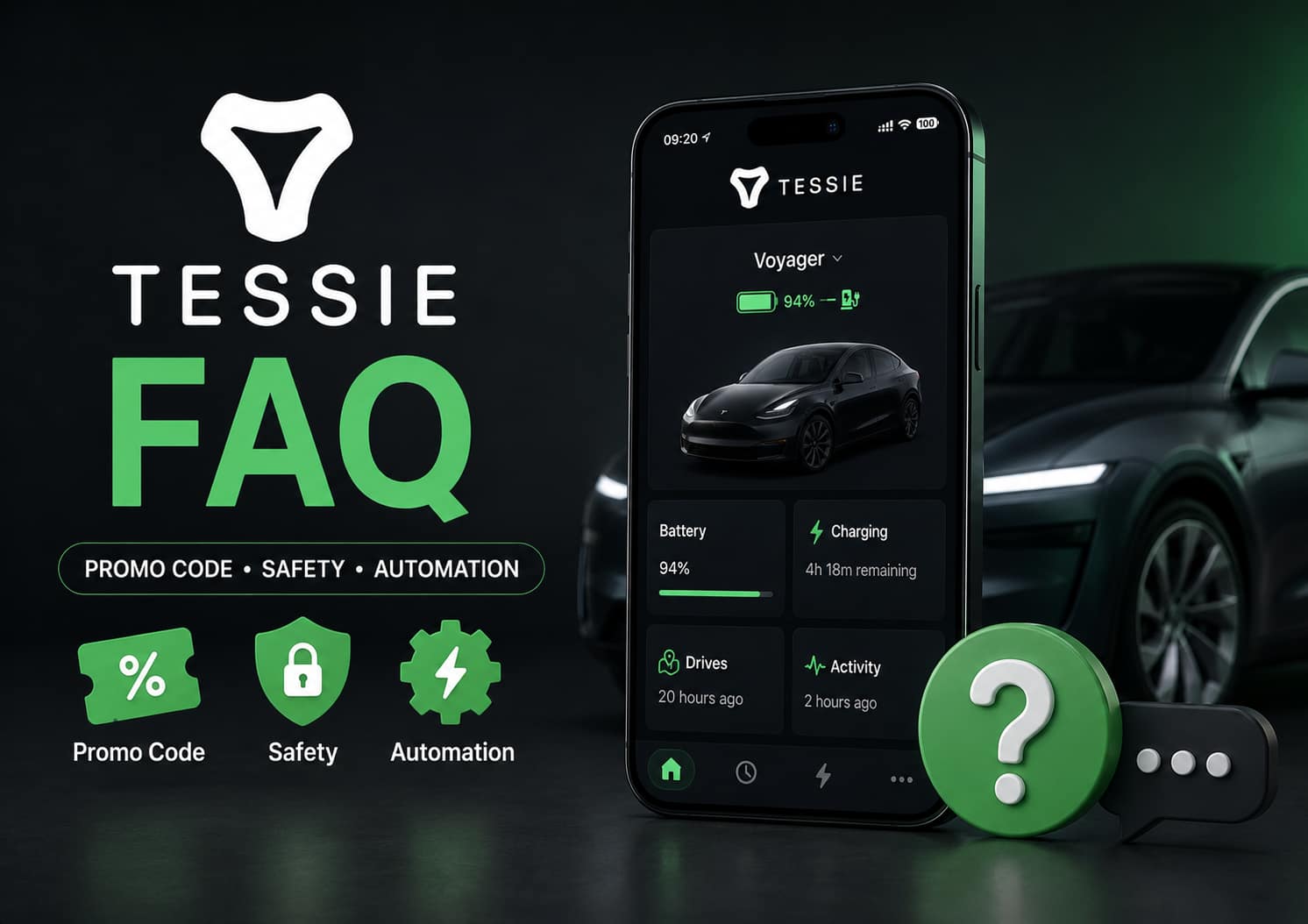
In a rush? Use the official Tesla app for the basics, then add a stronger companion tool if you want deeper history or automation. See the Tessie route here if you want deeper Tesla data.
Quick Answer: Best Tesla App Tips UK Owners Should Know
The Tesla app is more capable than most owners realise. Beyond locking, unlocking, and climate control, there are shortcuts, settings, and features buried in menus that make daily use faster and more convenient. This guide covers the 25 most useful Tesla app features for UK owners in 2026, from scheduling charging on off-peak tariffs to setting up driver profiles and using voice commands while driving.
🚗 1. Send Navigation from Your Phone to Your Tesla
You can search for a destination on your phone and beam it straight to your Tesla. The app calculates charge stops, lets you set your departure battery percentage, and updates your expected arrival state of charge.
⚡ 2. Save Money Charging with Intelligent Octopus Go
Pair your Tesla with Intelligent Octopus Go to charge overnight at just 7p/kWh automatically. You can use the Tesla app to set scheduled charging windows to maximise the savings.
🗺️ 3. Add Multiple Stops to Your Trip
Pre-plan complex routes by adding stops right in the Tesla app. Great for weekend getaways or EV-friendly touring like the North Coast 500 in a Tesla.
🔋 4. Monitor Battery Health with Tessie App
Want deeper insights into your Tesla’s battery performance? The Tessie app syncs with your vehicle and provides real-time battery degradation reports, charging efficiency tracking and automation features.
🌡️ 5. Use Climate Preconditioning Before Getting In
Start the AC or heating before leaving the house or the golf course. Use “Keep” mode if you're popping into the shop for 20 minutes; it's more efficient than restarting the climate from scratch.
📉 6. Set Your Arrival Charge for Each Destination
If you're arriving somewhere with a charger, set your arrival charge to 5% to minimise charging time on the road.
🧾 7. Track and Export Your Charging History
Need to track your Tesla’s charging sessions for tax or work purposes? Use the Charging > History tab in the app to export all data into a spreadsheet – ideal for freelancers or self-employed drivers.
🔢 8. Switch Between % and Miles Instantly
Tap the battery icon to switch between the percentage remaining and estimated range. Useful depending on how you prefer to monitor the range.
🧊 9. Enable Cabin Overheat Protection
Keep your car safe and cool in summer without draining the battery. Use “No A/C” to let fans run and save energy.
📍 10. Real-Time Location Tracking
Whether you’re monitoring your partner’s commute or checking where your teen took the car, real-time GPS and speed tracking are built into the app.
🧠 11. Calendar Sync for Auto Navigation
Sync your phone calendar to Tesla and your car will automatically navigate to upcoming events, meetings or even your cinema date.
🎥 12. View and Download Dashcam Footage
You can access saved dashcam clips from incidents or sentry alerts and download them directly from your app, which is incredibly helpful for insurance claims or reporting incidents.
🛜 13. View Live Camera Feed from Your Tesla
Need to check on your parked car? Activate Sentry mode and view a live feed from your phone – security made simple.
🔐 14. Share Access with Friends or Family
Send app access to a friend or guest driver via text. They can drive the Tesla with their phone and even create their own profile.
🛠️ 15. Check Specs and Warranty Details Anytime
Planning to sell your Tesla? Tap into **Specs & Warranty** to get exact trim levels, warranty expiry, and battery coverage in seconds.
🚨 16. Set Up Parental Controls and Speed Limits
Teenager using the car? Use “Chill Mode” to limit acceleration, set speed alerts, and define curfews right from your phone.
🎨 17. Personalise Your Tesla’s Name and App Photo
Hold your car’s name to rename it, or upload a new profile picture to personalise your app dashboard.
💳 18. Update Payment Info or Subscribe to Memberships
Update your charging payment details or subscribe to Supercharger membership plans for discounted pricing on long road trips.
📊 19. Use the Tesla App to Control Multiple Cars
Got more than one Tesla? Toggle between them in the app and control each one independently – great for families or businesses.
🔁 20. Automate Repeating Schedules
Use Tesla’s scheduling tool to precondition or charge on specific days and times. Handy for regular work commutes or after-school pickups.
📈 21. Run a Battery Health Test (Via Service Mode)
You can run a battery health check directly in the Tesla app. Results appear in the “Battery Health” section to give peace of mind before long journeys.
📲 22. Use Tessie to Track Trips and Calculate Costs
With the [Tessie app](https://moneyappreviews.com/reviews/tessie-app-tesla-battery-health-trip-tracker/), you can get trip summaries, cost breakdowns, and even automate routines like enabling Dog Mode or opening the charge port at home.
🧰 23. Access Tesla's Virtual Assistant for Help
Need help or want to schedule service? Use the in-app Tesla support assistant for troubleshooting, guides, and appointment booking.
📥 24. View Your Full Service History
Everything from tyre replacements to software updates is stored in the service section – great for maintenance tracking or when preparing to sell.
🧠 25. Learn New Tricks from Tesla’s Video Library
Don’t forget to check the built-in video library. It includes guides on Autopilot, screen controls, and charging tips, no YouTube rabbit hole required.
Tesla app tips UK: 25 tools and features to know
Combine the Tesla app with tools like:
- Tessie App for analytics and automation
- Octopus Energy for cheaper charging
- Intelligent Octopus Go to automate EV charging at night
This is what sets Tesla apart; it’s not just the car, it’s the connected experience.
Pick the next Tesla tool or guide
If this page helped you tighten daily Tesla app use, the next step depends on whether you want release tracking, deeper analytics, or better first-week setup.
- Tesla App Update Tracker for new app releases and feature rollouts.
- Tesla Software Update Tracker when a feature also depends on the car-side update.
- Tessie review if you want battery health, charging history, and long-term analytics the stock app does not keep.
- Tesla Model 3/Y setup guide if you are still dialing in the basics after delivery.
Common Questions
Can I schedule charging through the Tesla app?
Yes. Go to Schedule in the charging menu. You can set a departure time and the car will be charged and preconditioned by that time. For off-peak tariff users, set the departure time to match when your cheap rate ends. The car will schedule charging to finish by that time, maximising the use of cheap electricity.
Does the Tesla app drain the car battery?
Opening the app wakes the car from sleep, which uses a small amount of power. Checking once or twice a day has negligible impact. Checking every hour or leaving the app open with Sentry Mode active will drain the battery noticeably. Use the widget for quick checks without fully waking the car.
Can I use the Tesla app as a key?
Yes. The phone key uses Bluetooth and works even without mobile signal. Set up your phone as a key through the app and the car will unlock automatically as you approach. Keep a key card in your wallet as a backup in case your phone battery dies.
How do I set up driver profiles in the Tesla app?
Driver profiles save seat position, mirror settings, steering wheel position, and driving preferences. Set them up in the car, not the app. Once saved, the car recognises which phone is approaching and loads the corresponding profile automatically.
Can I check Supercharger availability from the app?
Yes. Go to Location in the app and search for nearby Superchargers. The app shows how many stalls are available and the current charging rate. You can also view your charging history and see how much each Supercharger session cost.
What Tesla app settings should I check for UK driving?
Set your home charging location and off-peak rate for accurate cost tracking. Enable PIN to drive for extra security. Set up speed limit warnings for UK roads. Check the climate settings for preconditioning on a schedule during winter months. And make sure software updates are set to download over WiFi to avoid using mobile data.
I have used the Tesla app daily since getting my Model 3 in 2021. The features I use most are scheduled charging tied to my Intelligent Octopus Go off-peak hours, the widget for quick climate control without opening the app, and the Supercharger availability check before long drives. The app has improved significantly over the years and is now one of the better manufacturer apps available.

I’m Steven, founder of MoneyAppReviews. I test money apps, referral programs, and EV tools in real life before I write about them. I drive a 2021 Tesla Model 3 Long Range, use Octopus Intelligent Go for home charging, and regularly track costs, savings, and app performance over time. I focus on practical, evidence-based reviews that help people decide what is actually worth using, not just what pays the highest commission.